
24 marca 2026
KSeF, Podatki
If you wish to grant another party (e.g. a representative or an accountancy firm) authorisation to use KSeF on your behalf, you must do so via the KSeF Taxpayer Application.

You can log in to the KSeF Taxpayer Application via this link: https://ksef.podatki.gov.pl/. Unfortunately, the website is only available in Polish, so to make things easier for you, we have prepared detailed instructions:
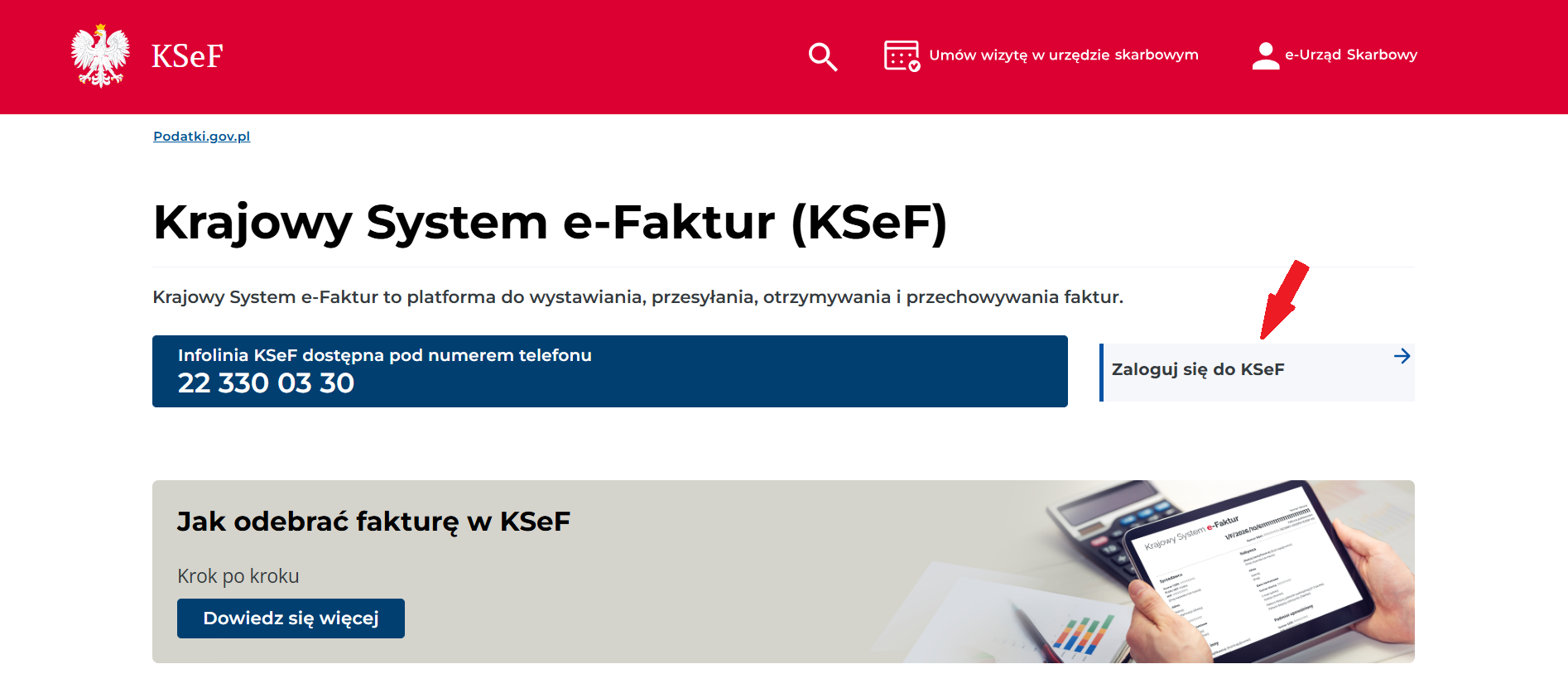
1. Go to the website: https://ksef.podatki.gov.pl/
2. Click the “Zaloguj się do KSeF” (“Log in to KSeF”) button (marked with the red arrow).
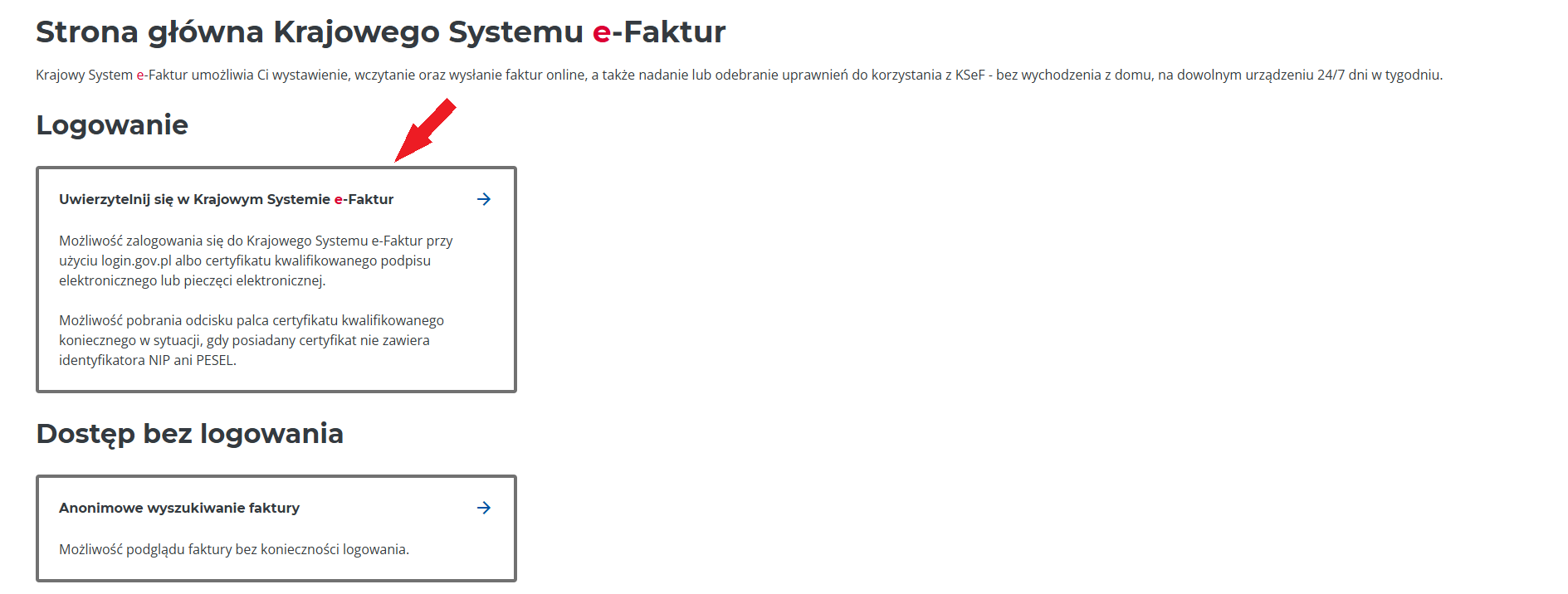
3. Click the option “Uwierzytelnij się w Krajowym Systemie e-Faktur” („Authenticate in KSeF”).
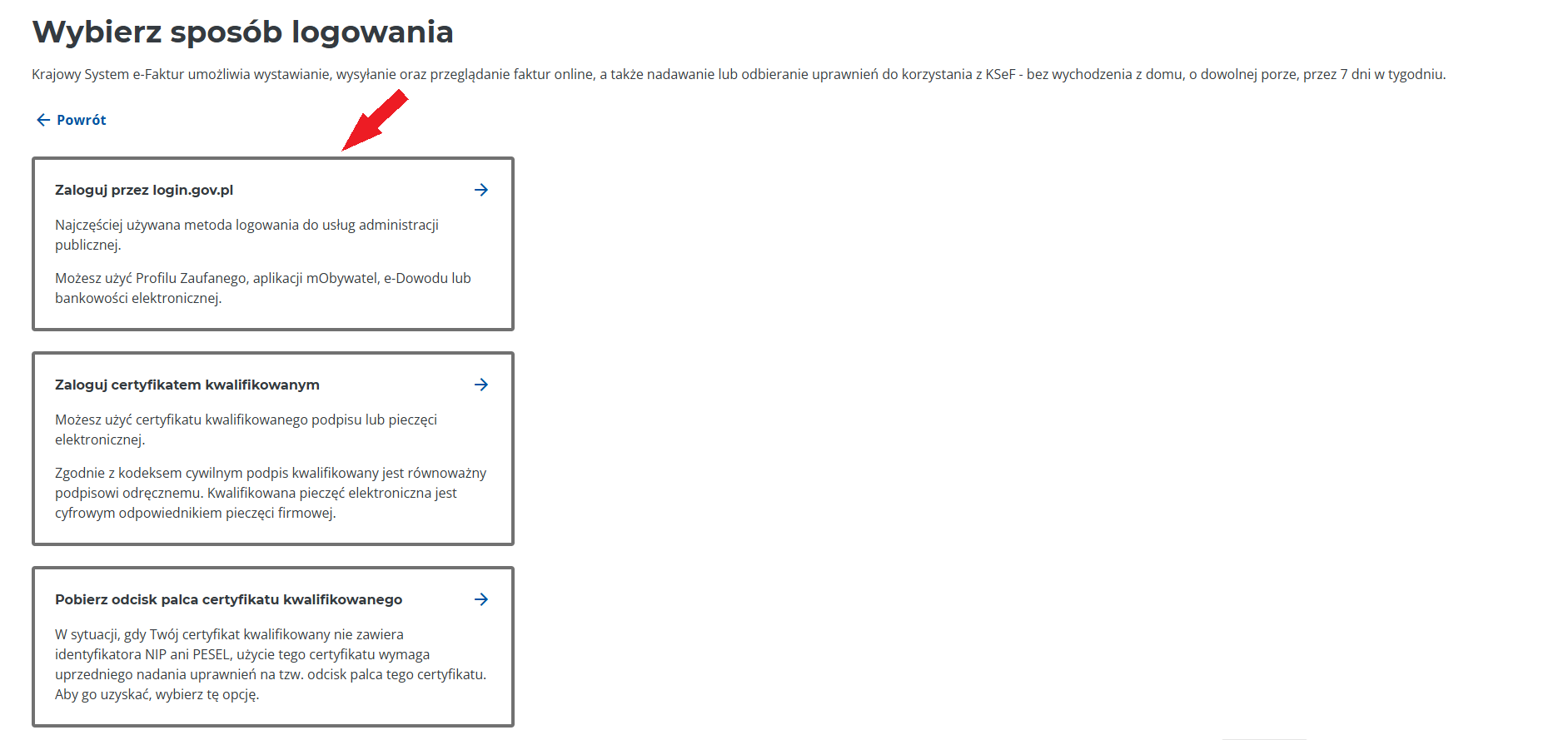
4. Click the option “Zaloguj przez login.gov.pl” (“ Log in via login.gov.pl”).
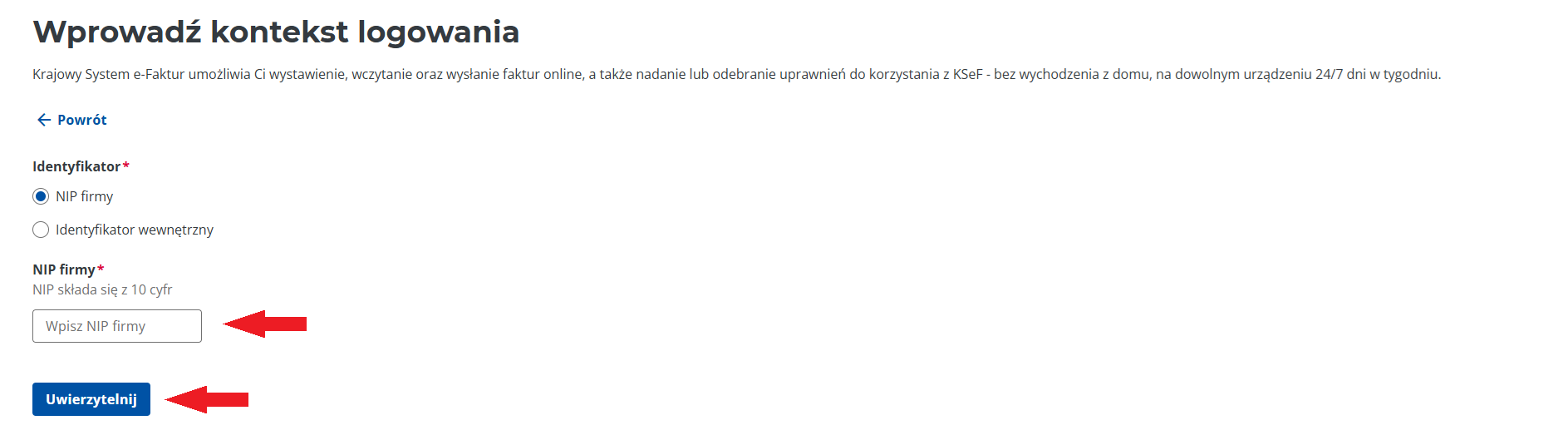
5. Select “NIP firmy” and enter your company’s NIP.
6. Click the “Uwierzytelnij” (“Authenticate”) button.
7. Select your login method. The available options are: Trusted Profile (Profil Zaufany), mObywatel app, online banking (bankowość elektroniczna), e-ID (e-Dowód), and Use eID.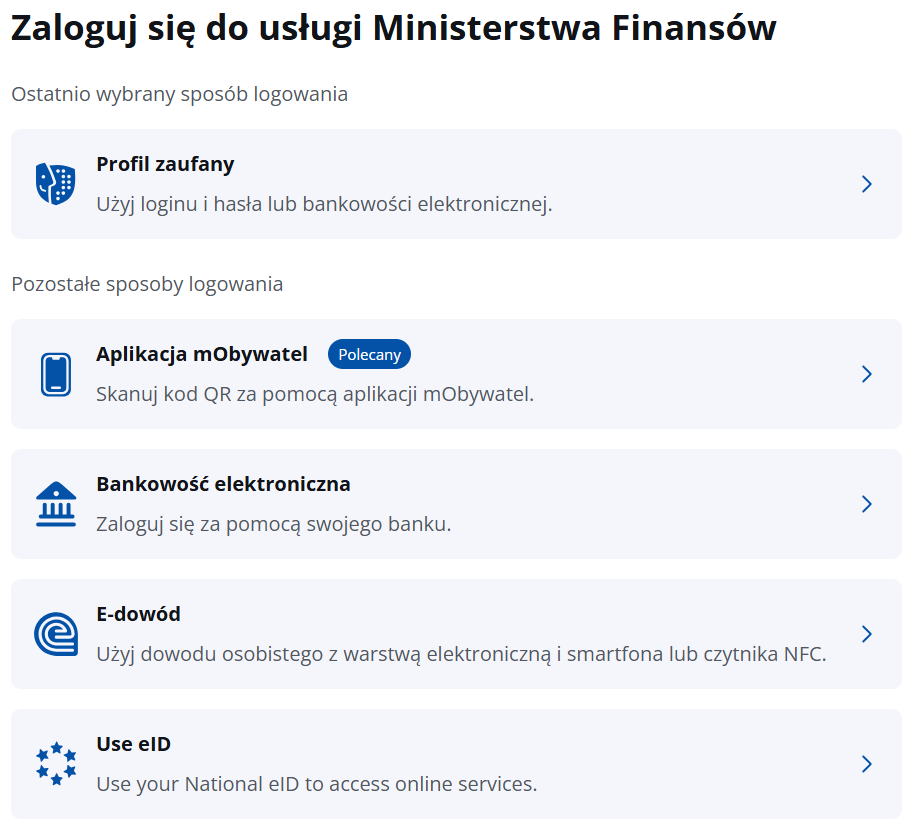
8. Follow the remaining steps for the selected method.
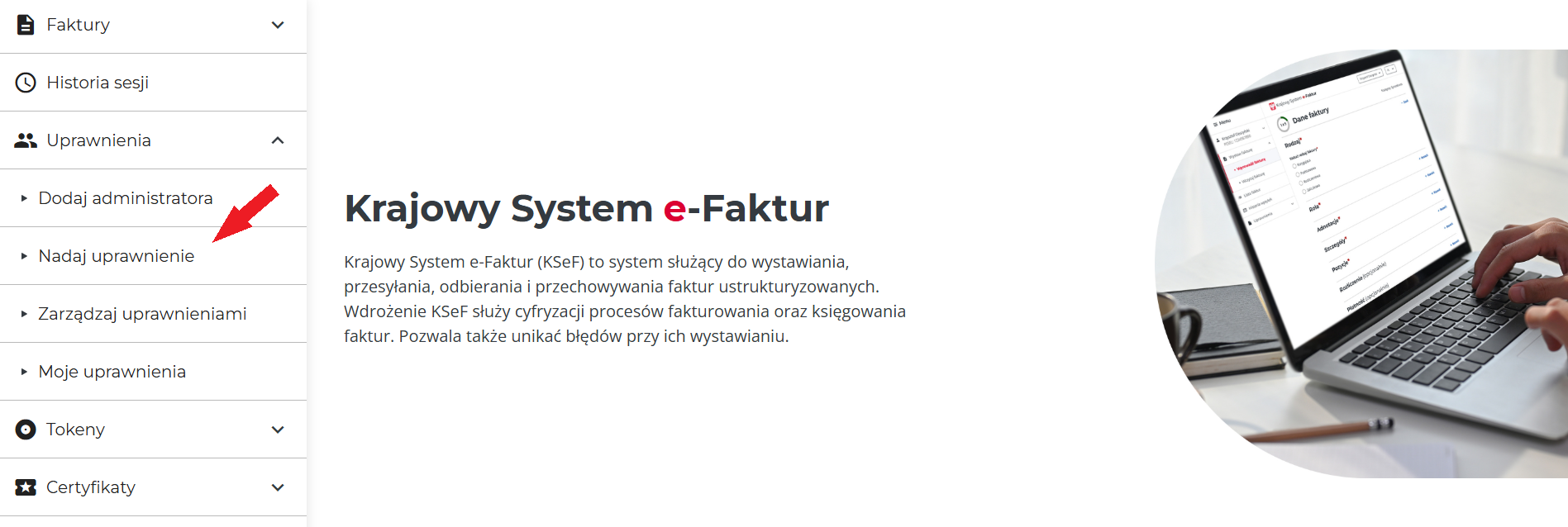
9. Once you have logged in, you will see the main screen of the KSeF Taxpayer App. From the menu on the left, expand the “Uprawnienia” (“Permissions”) section and click the “Nadaj uprawnienie” (“Grant permission”) button.
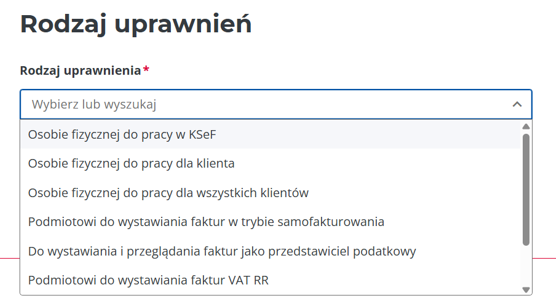
10. In the ‘Authorisation type’ section, the drop-down menu offers the following options:
- Individual to work in KSeF (Osobie fizycznej do pracy w KSeF) – used to grant permissions to an individual (e.g. a representative or an employee)
- Individual to work for a client (Osobie fizycznej do pracy dla klienta) – option intended for an accounting firm
- Individual to work for all clients (Osobie fizycznej do pracy dla wszystkich klientów) – option intended for an accounting office
- Entity to issue invoices under the self-invoicing scheme (Podmiotowi do wystawiania faktur w trybie samofakturowania)
- To issue and view invoices as a tax representative (Do wystawiania i przeglądania faktur jako przedstawiciel podatkowy) – used to grant permissions to a tax representative. The tax representative is entitled to all ownership rights.
- Entity to issue VAT RR invoices (Podmiotowi do wystawiania faktur VAT RR) – an option intended for taxpayers purchasing goods from flat-rate farmers
- Entity to issue and view invoices (Podmiotowi do wystawiania i przeglądania faktur) – used to grant permissions to an entity, e.g. an accounting firm
- Peppol service provider to issue PEF invoices (Dostawcy usług Peppol do wystawiania faktur PEF) – used for issuing invoices in public procurement
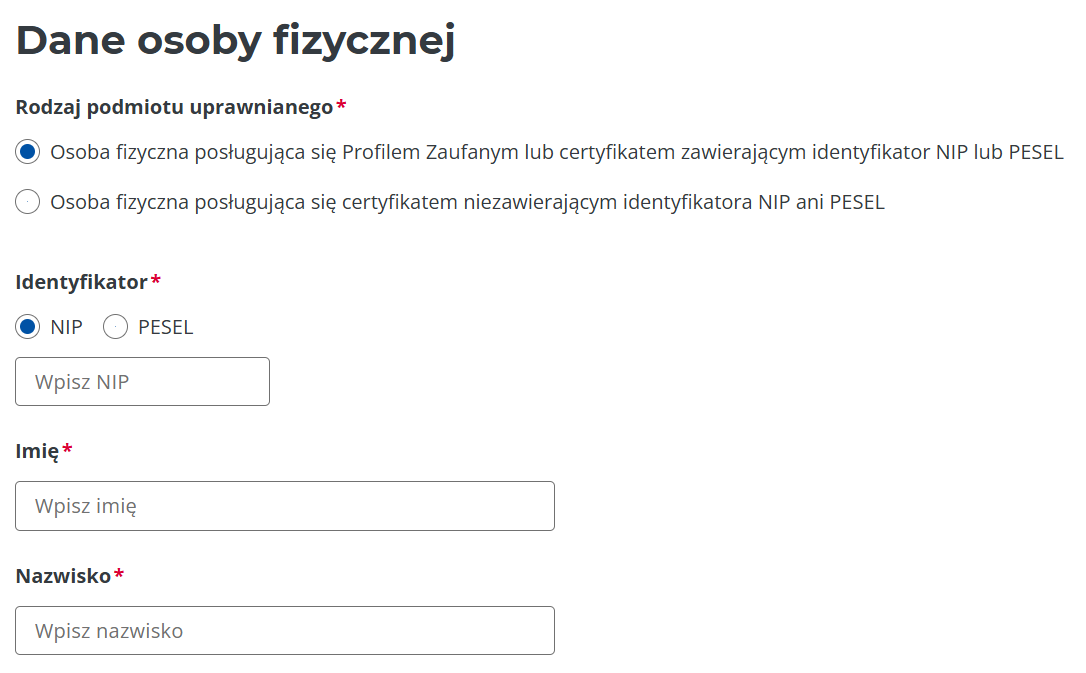
11. If you wish to grant permissions to a specific individual:
i. Select the option “Osobie fizycznej do pracy w KSeF”. This option is used to grant permissions to, for example, an employee or a representative. Please note that this person will not be able to transfer these permissions to others.
ii. Select the box „Osoba fizyczna posługująca się Profilem Zaufanym lub certyfikatem zawierającym identyfikator NIP lub PESEL” (“Natural person using a Trusted Profile or a certificate containing a NIP or PESEL number”) and fill in the fields: NIP or PESEL, imię (first name), nazwisko (surname).
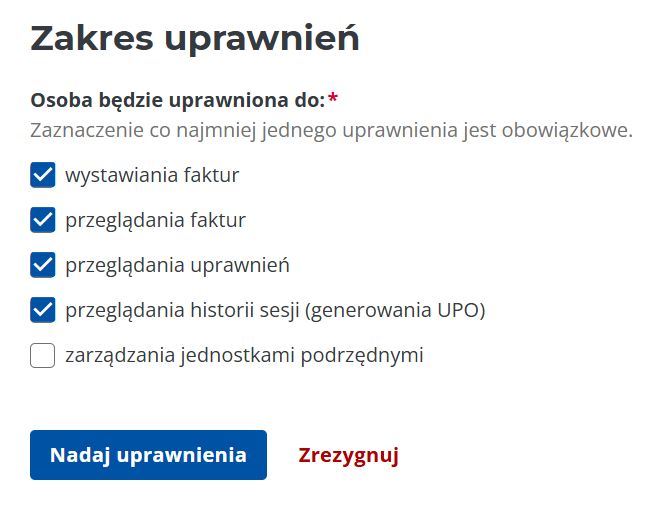
iii. Select the permissions you wish to grant to this person. You can choose from the following options:
- Issuing invoices (Wystawiania faktur)
- Viewing invoices (Przeglądania faktur)
- Viewing permissions (Przeglądania uprawnień)
- Viewing session history (generating UPO – official confirmation of receipt) – (Przeglądania historii sesji (generowania UPO)
- Managing subordinate units (Zarządzania jednostkami podrzędnymi) – this option applies to local government units, VAT group members and companies with internal units
iv. Click the “Nadaj uprawnienia” (“Grant permissions”) button.
12. If you wish to grant permissions to an accounting office:
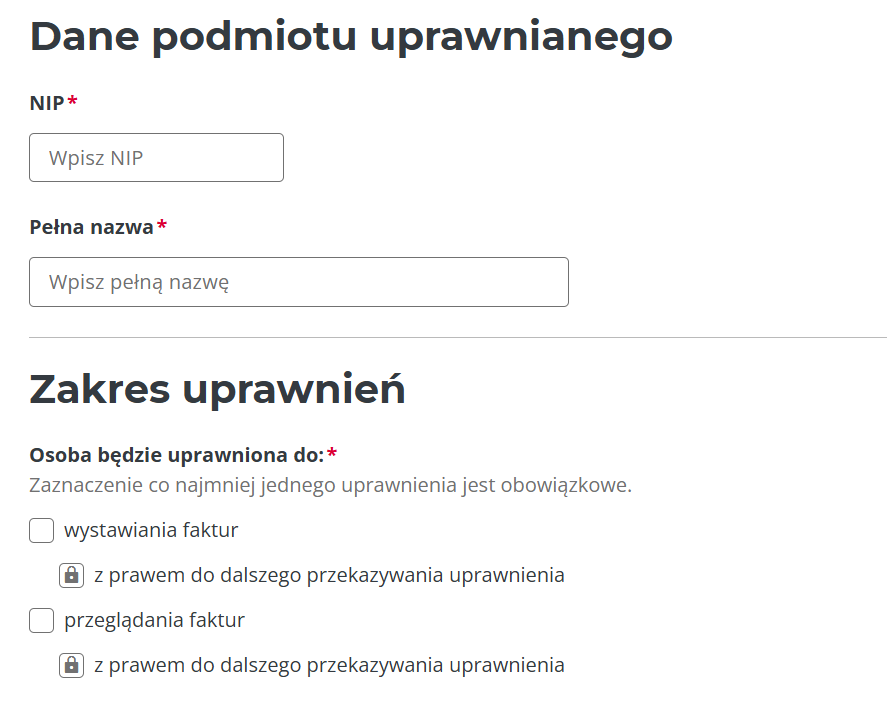
i. select the option “Podmiotowi do przeglądania i wystawiania faktur”. In this option, the owner of the accounting office will be able to grant permissions to their employees (provided you give your consent – see point III)
ii. Complete the “Dane podmiotu uprawnionego” (“Details of the authorised entity”) section. Enter the tax identification number (NIP) and the name (“Pełna nazwa”) of the accountaning office.
iii. In the ‘Scope of permissions’ field, you can select which permissions you wish to grant to the accounting firm. You can choose to grant permissions for:
- issuing invoices (wystawiania faktur)
- viewing invoices (przeglądania faktur)
iv. If you want to allow the owner of the accounting firm to delegate permissions to their employees, tick the box marked “z prawem do dalszego przekazywania uprawnienia” (“with the right to further delegate permissions”). You may agree to delegate both permissions, just one of them, or refuse to grant permission at all.
v. Click the “Nadaj uprawnienia” (“Grant permissions”) button.
Aktualności